Teleprompter for video calls
Keep your talking points right under the camera during Zoom, Google Meet and other calls. Your audience sees you looking at them, not at your notes, and the prompter never shows up when you share your screen.
Why reading notes on a call looks awkward
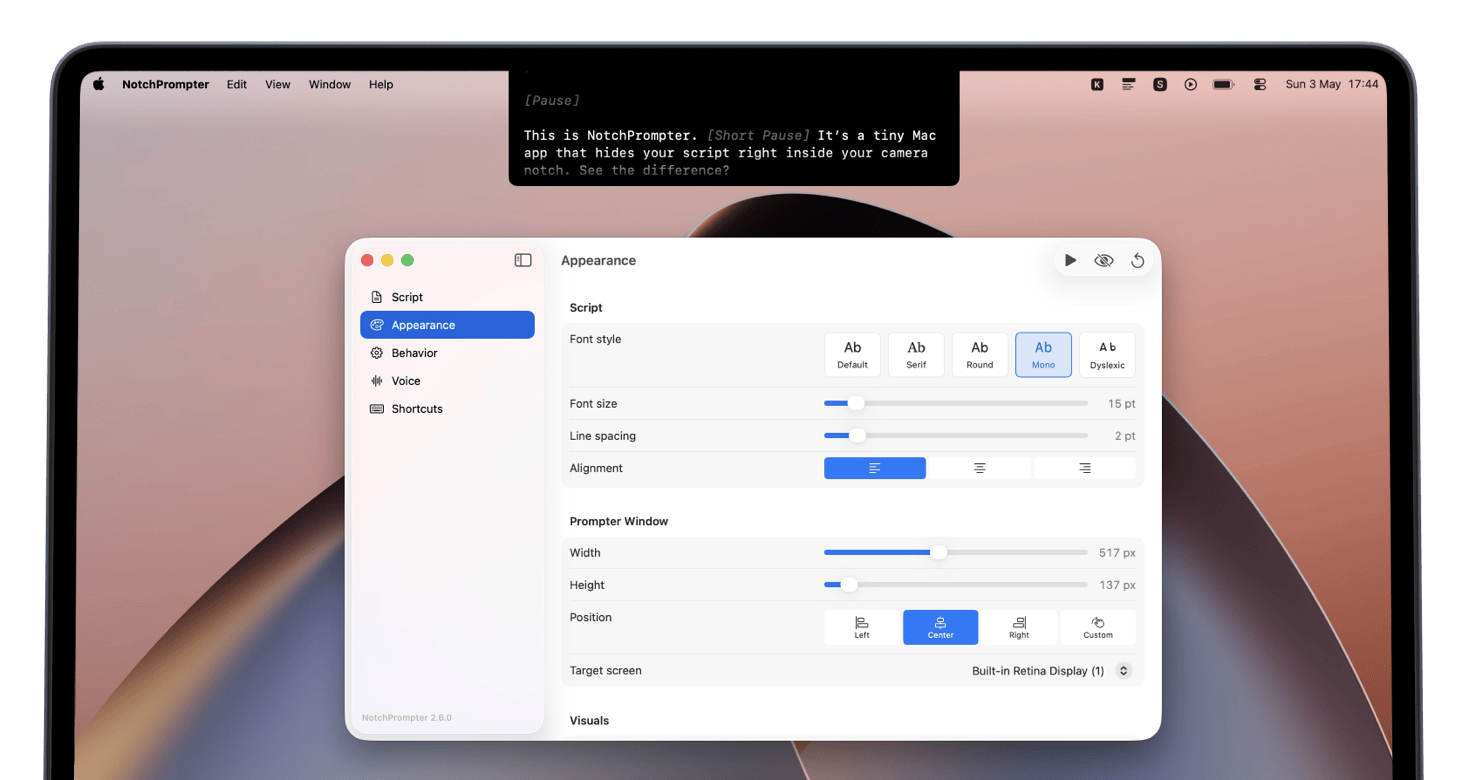
On a laptop the camera sits at the very top of the screen, but your notes usually live in another window or on a second monitor. Every time you glance at them, people on the call see your eyes drift away. It is a small thing, but it makes even well-prepared presentations, client calls and sales demos look less confident.
NotchPrompter solves this by putting your text in the notch area, a few millimetres from the camera. When you read, your eyes stay almost level with the lens, so to everyone else it looks like you are simply looking at them.
Invisible when you share your screen
The prompter window is excluded from screen capture. When you share your entire screen in Zoom, Google Meet or any other screen sharing tool, participants see your slides, demo or browser, never your script.
Hands-free with voice activation
You do not want to reach for the keyboard in the middle of a sentence. With voice-activated scrolling turned on, the text moves while you speak and pauses when you stop to answer a question. Prefer manual control? Use global keyboard shortcuts to start, stop and adjust scrolling without switching windows.
Great for
- Sales demos: keep your demo flow and key value points in view while you click through the product.
- Team updates and all-hands: deliver announcements without reading off a second monitor.
- Webinars and online classes: follow your outline and never lose your place.
- Client meetings: keep the agenda and the questions you want to ask in front of you.
Tips for using a teleprompter on calls
- Write bullet points, not full sentences. On a live call you want to sound conversational, not scripted.
- Use a slightly larger font and a slower speed than you would for a recorded video.
- Not using a MacBook with a notch? NotchPrompter works on any Mac and appears at the top of the screen, which is usually right under an external webcam too.
Want more advice? Read our guide on how to use a teleprompter so you sound natural.